File Permissions and Access Control Lists

What is Linux File Permission and Access Control List?
In Linux, file permissions are used to control the access rights of files and directories. There are three basic types of permissions: read, write, and execute. These permissions can be set for three different groups of users: the owner of the file, the group that the file belongs to, and all other users.
The permission system consists of three basic parts: file ownership, file permissions, and access control lists (ACLs). File ownership is controlled by the user who created the file, and the user can assign ownership to other users or groups. File permissions are controlled by the file owner and can be set to restrict or allow access to the file.
Access Control Lists (ACLs) provide a more fine-grained level of control over file access. They allow for specific users or groups to be granted or denied access to a file or directory, and they can be used in combination with file permissions to provide more granular control.
In addition to the standard file permissions, ACLs allow for more advanced control over file access. For example, an ACL could be used to allow a specific user to read a file, but not to modify or delete it. ACLs can also be used to grant access to groups of users, rather than just individual users.
Overall, file permissions and ACLs are essential for maintaining the security and integrity of a Linux system. By properly managing access to files and directories, system administrators can prevent unauthorized access and ensure that users only have access to the files and resources that they need.
Types of permissions
r - read 4
w - write 2
x - execute 1
Permission (rwx) levels
u - yourself (the current user)
g - group to which the user belongs to
o - others (outside the group)
a - all
How to see the permissions?
ls -ltr
find group information
id <user_name>
How to change the permission?
chmod u+r <file_name> (for adding permission)
chmod u-r <file_name> (for removing permission)
chmod ugo-r <file_name>
chmod a+rwx <file_name> (adding the permission for all)
chmod a-rwx <file_name> (for removing all the permission)
chmod g+rw <file_name> (for adding permission to group)
Note: one more important thing is you can't change other user permission it means when u logged in to Bhaarat user but change the permission of the root user then you can't, but the root user can change all permission of other users but normal users can't change it.
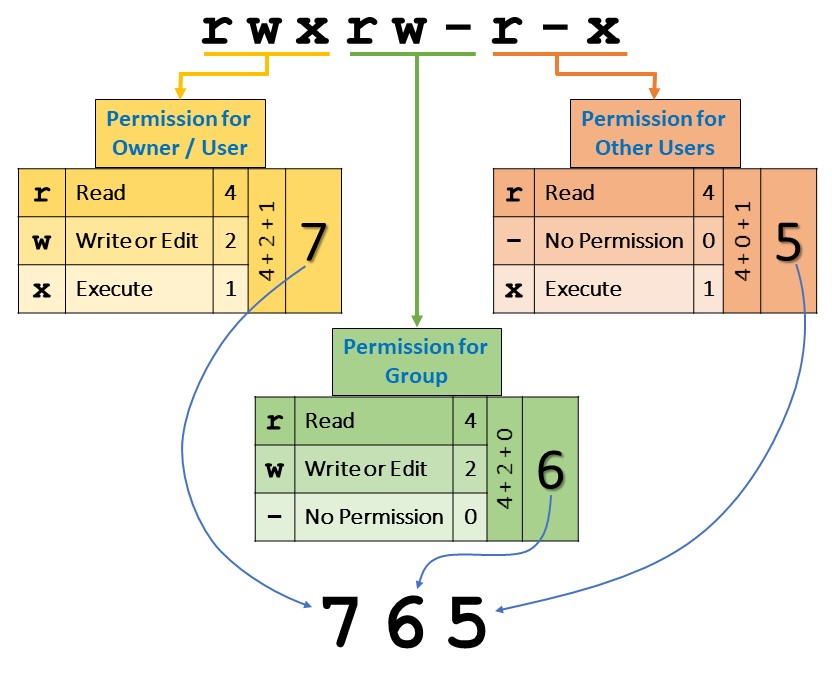
chmod Numeric Mode
Ex : chmod 756 <file_name>
In the above example,
The first numeric number 7 shows the user
The second numeric number 5 shows the group
The Third numeric number 6 shows the other user
Number Permission Type Symbol
0 No permission ---
1 Execute --x
2 write -w-
3 Execute + write -wx
4 read r--
5 read + execute r-x
6 Read + Write rw-
7 Read + Write + Execute rwx

Access Control List (ACL)
Think of a scenario in which a particular user is not a member of group created by you but still you want to give some read or write access, how can you do it without making the user a member of the group, here comes in picture Access Control Lists, ACL helps us to do this trick.
It allows you to give a more specific set of permissions to a file or directory without changing the base ownership and permission.
The getfacl command is used to view the ACL of a file or directory, while the setfacl command is used to modify the ACL. These commands are available on most UNIX-like systems.
Here are some examples of how to use these commands:
getfaclACL stands for Access Control List, which is a set of permissions attached to a file or directory that specifies which users or groups are granted access to the object and what actions they can perform. ACL provides a more flexible way of defining access permissions than the traditional UNIX file permissions, which only allow permissions for the owner, group, and others.
The
getfaclcommand is used to view the ACL of a file or directory, while thesetfaclcommand is used to modify the ACL. These commands are available on most UNIX-like systems.To Install
getfacl / setfacl, run below command first:sudo apt install aclHere are some examples of how to use these commands:
To view the ACL of a file, use the
getfaclcommand followed by the file name: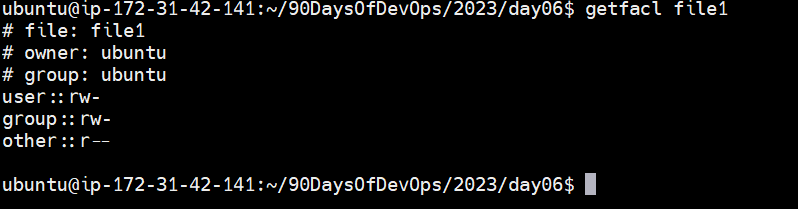
setfacl
To modify the ACL of a file or directory, use the setfacl command followed by the options and file name:
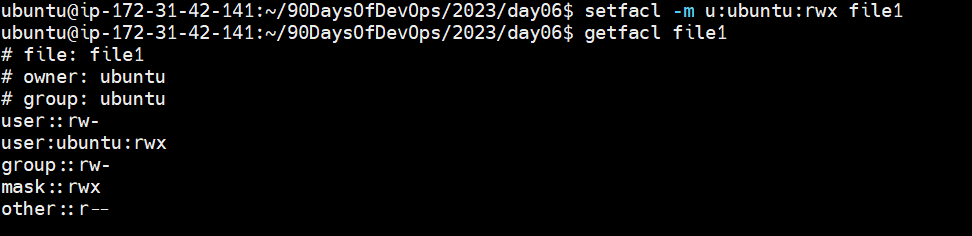
This command grants read, write, and execute permissions to the user "ubuntu" for the file "file.txt". The -m option specifies that we are modifying the ACL, while the u:ubuntu:rwx option specifies the permission to be granted.
Here are some other options that can be used with the setfacl command:
-x: remove a permission from a user or group.-b: remove all ACL entries from a file or directory.-d: set the default ACL for a directory. The default ACL is applied to all files and subdirectories created within the directory.


